Tool comparison

Image upscaler vs photoshop for better detail and workflow

The right choice depends on the job. An image upscaler is built for enlarging and refining a picture quickly, while Photoshop gives you broader control over layered, manual editing.

Related guides

For a focused enlargement, an image upscaler usually has the shorter path from small source to usable output. Photoshop is the stronger choice when enlargement is only one part of a larger composition or retouching project.

Best fit

Dimension by dimension

The comparison changes depending on what you value most: speed, control, repeatability, or the amount of creative work surrounding the resize.

Product seller

You have a small product photo and need a larger listing image with clean edges and readable surface detail.

An image upscaler keeps the task focused, so you can enlarge the source before placing it in a store template.

image upscaler alternative online
Photographer

You want to enlarge a portrait or landscape while checking texture, hair, fabric, and background transitions.

A dedicated enlargement pass gives you a clear result to inspect before any finishing edits in Photoshop.

image upscaler alternative online

Designer

The image is one layer in a poster, social graphic, composite, or branded campaign.

Photoshop is more suitable when masks, typography, color adjustments, and several source layers matter as much as size.

image upscaler alternative online

Family archivist

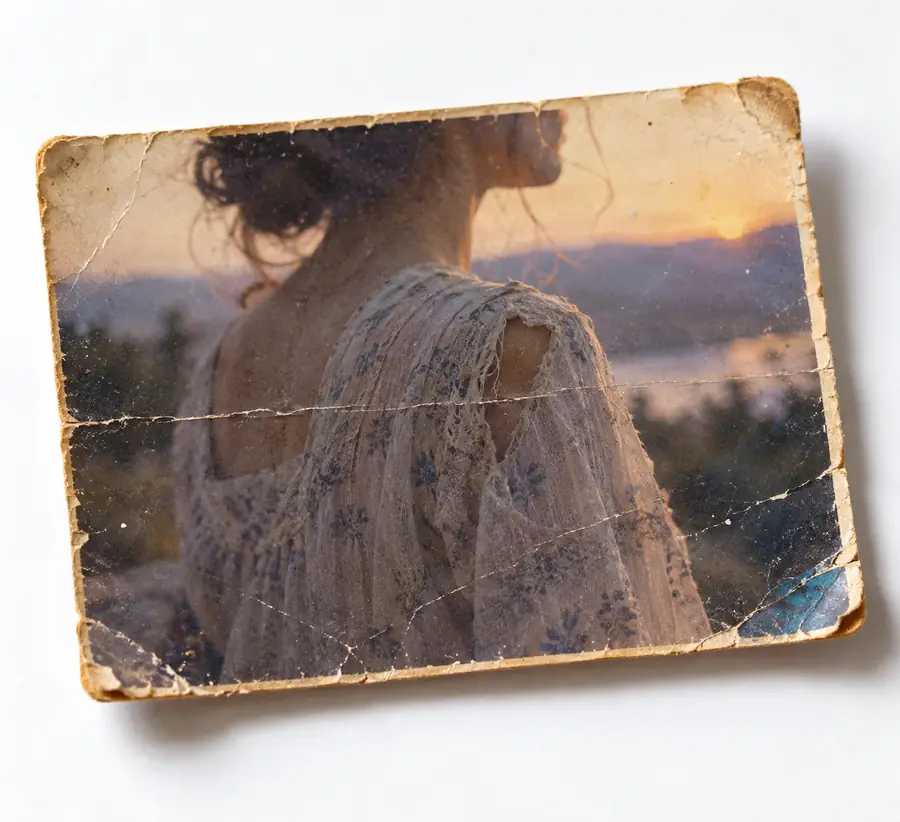
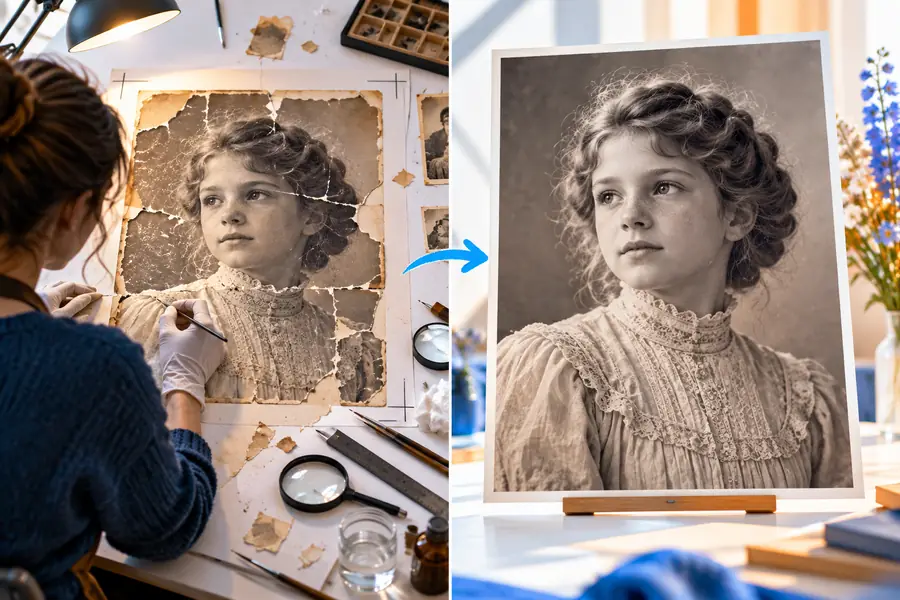
You are improving a scanned photograph or an old mobile image without building a complex editing project.

A simple enlargement workflow reduces setup and makes it easier to compare the source with the revised image.

image upscaler alternative online

Practical workflow

Who each tool suits

You do not have to treat the tools as permanent alternatives. Many projects work best when enlargement happens first and detailed composition happens afterward.

  1. 1

    Inspect the source

    Check the original dimensions, compression, blur, noise, and the details that must remain believable. A larger canvas cannot recover information that is completely absent.

  2. 2

    Choose the narrowest tool

    Use a focused image upscaler when the main objective is enlargement and enhancement. Choose Photoshop when the resize sits inside a broader retouching, compositing, or layout task.

  3. 3

    Finish and verify

    Review faces, text, edges, and fine textures at the intended output size. If the image will enter a larger design, continue with layers, masks, and color work in Photoshop.

Result preview

Migration path: from quick enlargement to full editing

A dedicated enlargement can be a first step rather than a replacement for every Photoshop feature. The useful question is where each tool adds the most value in your actual process.

  • Small source
  • Enlarged result

Compare detail before adding creative edits.

Small source image prepared for comparison
Enlarged image prepared for further editing

Side-by-side

What changes across the workflow

Both tools can appear in the same project, but they solve different problems. This table separates enlargement from the surrounding work so the decision is easier to make.

1

Primary purpose

Image upscaler

Enlarge and refine an image with a focused workflow

Photoshop

Edit, composite, retouch, and prepare layered designs

2

Setup time

Image upscaler

Usually limited to choosing a source and reviewing the result

Photoshop

Often includes document, layer, tool, and export setup

3

Manual control

Image upscaler

Focused controls with less hands-on intervention

Photoshop

Detailed control over layers, masks, selections, and adjustments

4

Enlargement task

Image upscaler

The central use case, with attention on recovered-looking detail

Photoshop

One operation among many, requiring more manual judgment

5

Creative compositing

Image upscaler

Not designed for multi-layer poster or scene construction

Photoshop

Strong fit for composites, typography, masks, and layered layouts

6

Repeatability

Image upscaler

Useful when many images need the same kind of enlargement

Photoshop

Repeatable through actions and batch features, but with more setup

7

Fine retouching

Image upscaler

Can improve apparent detail but does not replace detailed brush work

Photoshop

Better suited to precise cleanup, cloning, local edits, and masking

8

Best handoff

Image upscaler

Send the enlarged image into a broader design or retouching process

Photoshop

Export a finished composition or continue refining the enlarged layer

Honest limits

Where neither tool can perform miracles

A comparison is useful only when it includes the boundaries. Enlargement can improve presentation, but it cannot turn every damaged source into a faithful high-resolution original.

  • Missing detail stays uncertain

    If the source is severely blurred, clipped, or compressed, neither tool can know the exact original texture or lettering.

    WorkaroundUse the clearest available source and treat invented-looking detail as a visual approximation.

  • Text may need rebuilding

    Tiny labels, screenshots, and signs can remain soft or become visually altered after enlargement.

    WorkaroundRecreate important text as editable type in Photoshop or another design tool.

  • Creative edits remain separate

    A focused image upscaler is not a substitute for masks, layers, compositing, or detailed color grading.

    WorkaroundUpscale first, then move the result into Photoshop when the project needs those controls.

  • Output quality depends on input quality

    Noise, heavy JPEG artifacts, and uneven focus can become more visible as the image gets larger.

    WorkaroundClean the source modestly before enlargement and inspect the final file at its intended size.

Decision snapshot

The practical balance

These figures summarize the shape of the decision rather than promising a universal winner. Use them as a quick reminder of what each route is optimized to do.

1 One focused enlargement route and one full editing environment
2 tools
2 Purpose, setup, control, enlargement, compositing, and finishing shape the choice
6 factors
3 Inspect the source, enlarge with the narrowest tool, then finish and verify
3 stages
4 An enlarged image can move into a broader Photoshop project when needed
1 handoff

Next step

Choose the workflow that matches the image

If your immediate task is to make a small picture larger and more usable, start with a focused image upscaler. If the enlargement is only one step in a layered creative project, use the enlarged result as a starting point for Photoshop rather than forcing one tool to do everything.

Try an image upscaler
  • Start with the clearest source available
  • Inspect faces, edges, text, and texture
  • Continue in Photoshop when the project needs layers or compositing

Common questions

Comparison FAQ

These answers address the practical questions people ask when deciding between a dedicated enlargement workflow and Photoshop.

A dedicated image upscaler is often the more direct choice when enlargement is the main task. Photoshop offers broader control, but it may require more manual setup and does not make every enlargement decision automatically.

Yes, Photoshop includes image-size and resampling workflows that can enlarge a file. The result depends heavily on the source, the resampling method, and any manual cleanup you perform afterward.

That can be a practical sequence when the image first needs enlargement and later needs layers, masks, retouching, or composition. Review the enlarged result before continuing so artifacts do not get carried into the rest of the design.

No. It can replace Photoshop for a narrow enlargement task, but it does not replace a full editing environment for compositing, typography, detailed masking, or extensive retouching.

Compare the actual job, not only the maximum output size. Consider setup time, control, repeatability, enlargement quality, creative editing needs, and whether the result must become part of a layered project.

Start creating
Start creating