Can an image upscaler 16x free make your photo usable?
A 16× claim can refer to image width, height, or total pixel count—very different results. Check the output dimensions and inspect fine details before deciding whether an enlarged image suits your project.
Match the enlargement method to the image
The right test depends on what your source contains and where the result will appear.
Print makers
A small illustration needs to fill a larger print area. Check its starting dimensions and the printer’s resolution requirement before requesting an enlargement.
A target size is more useful than a multiplier alone: a large file can still show soft edges on paper.
A low-resolution face needs a closer crop. Compare eyes, hair, and skin after processing, since generated detail may look plausible without matching the person.
Keep the original available for checking identity-critical features.
An old scan contains handwriting or labels. Enlargement may make letters easier to view, but it cannot reliably recover characters absent from the scan.
Prefer a higher-quality scan when accurate transcription matters.
Treat a large output as a draft to inspect, not proof that the source contained more information.
1
Measure the source
Record its width and height in pixels, then decide the dimensions you actually need. A 500-pixel-wide source would become 8,000 pixels wide at 16× linear scale, which may be far beyond your intended use.
2
Describe the goal
Specify the subject and what should remain natural, such as fur, lettering, or facial features. The prompt above describes a useful editing goal; it does not guarantee a particular scale or output format.
3
Inspect at final size
Compare the source and result at both normal viewing size and a close crop. Look for halos, repeated texture, altered text, or features that seem newly invented before using the image.
If 16× sounds appealing but your destination has a specific size, these related guides help narrow the decision.
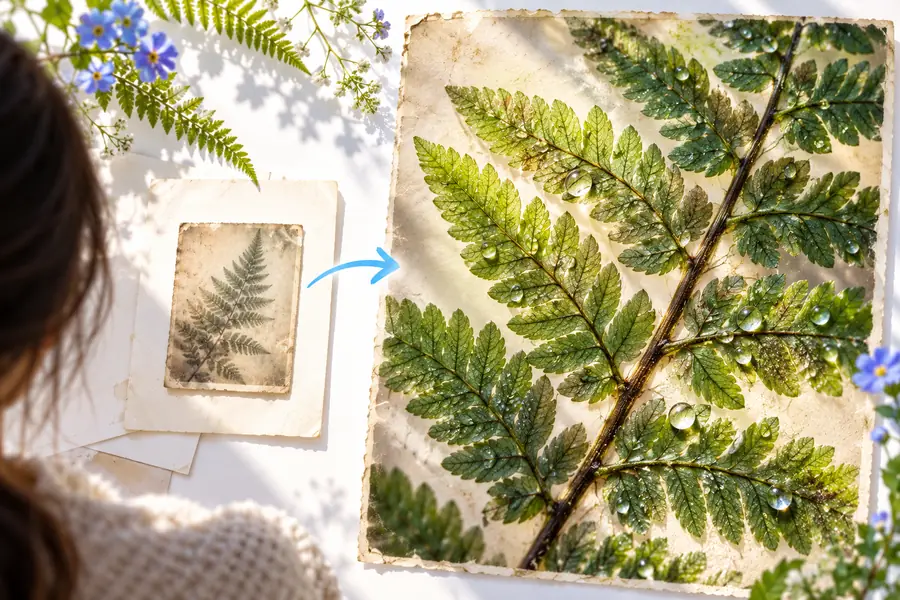
Look closely at the changed details
Before
After
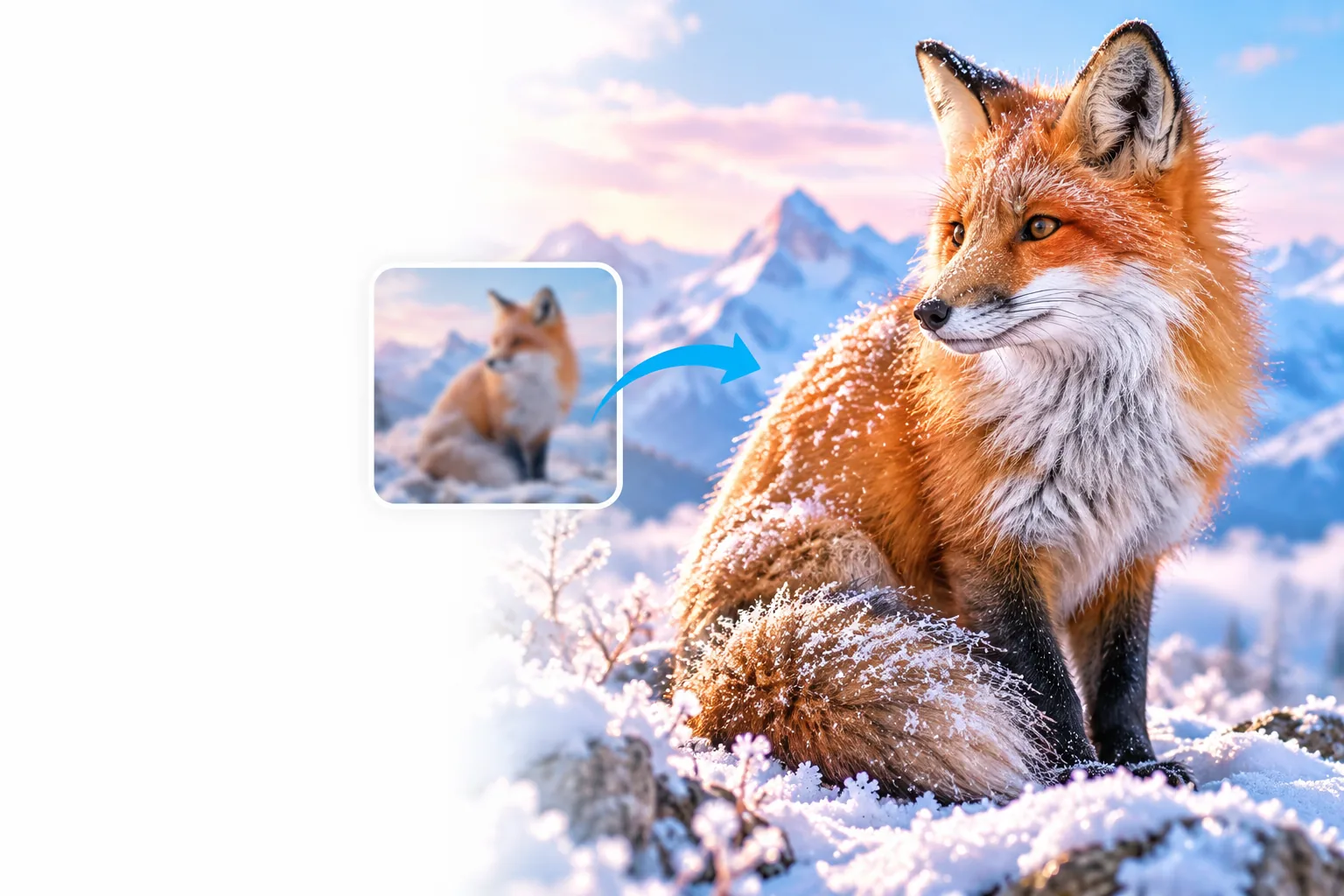
This pair illustrates a visual comparison, not a verified 16× enlargement. Check the actual pixel dimensions separately; apparent sharpness alone does not establish the scale.
16× width is not 16× as many pixels
The distinction changes both the output size and the amount of detail you should expect. This table uses a square 500 × 500-pixel source for illustration.
16× linear dimensions
16× total pixel count
1
Starting dimensions
16× linear dimensions
500 × 500 pixels
16× total pixel count
500 × 500 pixels
2
Width multiplier
16× linear dimensions
16×
16× total pixel count
4×
3
Height multiplier
16× linear dimensions
16×
16× total pixel count
4×
4
Resulting dimensions
16× linear dimensions
8,000 × 8,000 pixels
16× total pixel count
2,000 × 2,000 pixels
5
Resulting pixel count
16× linear dimensions
64 million pixels
16× total pixel count
4 million pixels
6
Increase over source pixels
16× linear dimensions
256×
16× total pixel count
16×
7
Detail recovered from source
16× linear dimensions
Not guaranteed by the dimensions
16× total pixel count
Not guaranteed by the pixel count
Know what a large output cannot fix
Missing information stays uncertain
No enlargement method can verify a hidden letter, a blurred face, or a texture the source never recorded. Added detail may be an interpretation rather than a recovery.
WorkaroundFind a better source or rescan the original when accuracy matters.
A 16× result is not assured here
The linked editing destination’s available controls, limits, access terms, and output dimensions are not established by this page. Do not assume it offers 16× enlargement or a free export.
WorkaroundCheck the destination’s current options and the downloaded file’s dimensions before relying on it.
More pixels can expose artifacts
Compression blocks, sharpening halos, and artificial patterns may become more obvious when a tiny source is enlarged substantially.
WorkaroundTest a smaller target first and inspect the areas that matter most at final display size.
Try an edit, then verify the file
Start with the image you have
Use Imageupscaler’s link to explore an image-editing workflow. If you need a specific enlargement, confirm the available settings and output dimensions at the destination, then compare the result with your original.
Check dimensions rather than relying on a 16× label
Inspect important details before publishing
Questions about 16× enlargement
It may mean 16 times the width and height, or 16 times the total number of pixels. Those produce very different dimensions: a 500 × 500-pixel image becomes either 8,000 × 8,000 or 2,000 × 2,000 pixels. Check which definition a tool uses.
The search phrase does not establish the access terms of any particular tool. Check the destination’s current terms, available enlargement settings, and export conditions before starting. This page does not promise a free 16× output.
It may produce a larger image that appears sharper, but blur can remove information that enlargement cannot verify. Inspect faces, text, and fine patterns closely, because plausible-looking detail may not match the original subject.
Neither target is automatically better. A 4K target specifies output dimensions, while 16× describes a multiplier whose result depends on the starting image. Choose the dimensions your display or print needs, then judge the visual result at that size.