Family archivist
You have a small old photograph and want a more comfortable viewing copy.
Keep the scan untouched, label an enhanced copy clearly, and avoid treating newly visible facial details as historical facts.
image upscaler examples freeMobile image guide
The best image upscaler app for android depends on your source photo and what you plan to do with the result. Use this guide to choose a workflow, inspect detail at full size, and avoid mistaking added sharpness for recovered information.
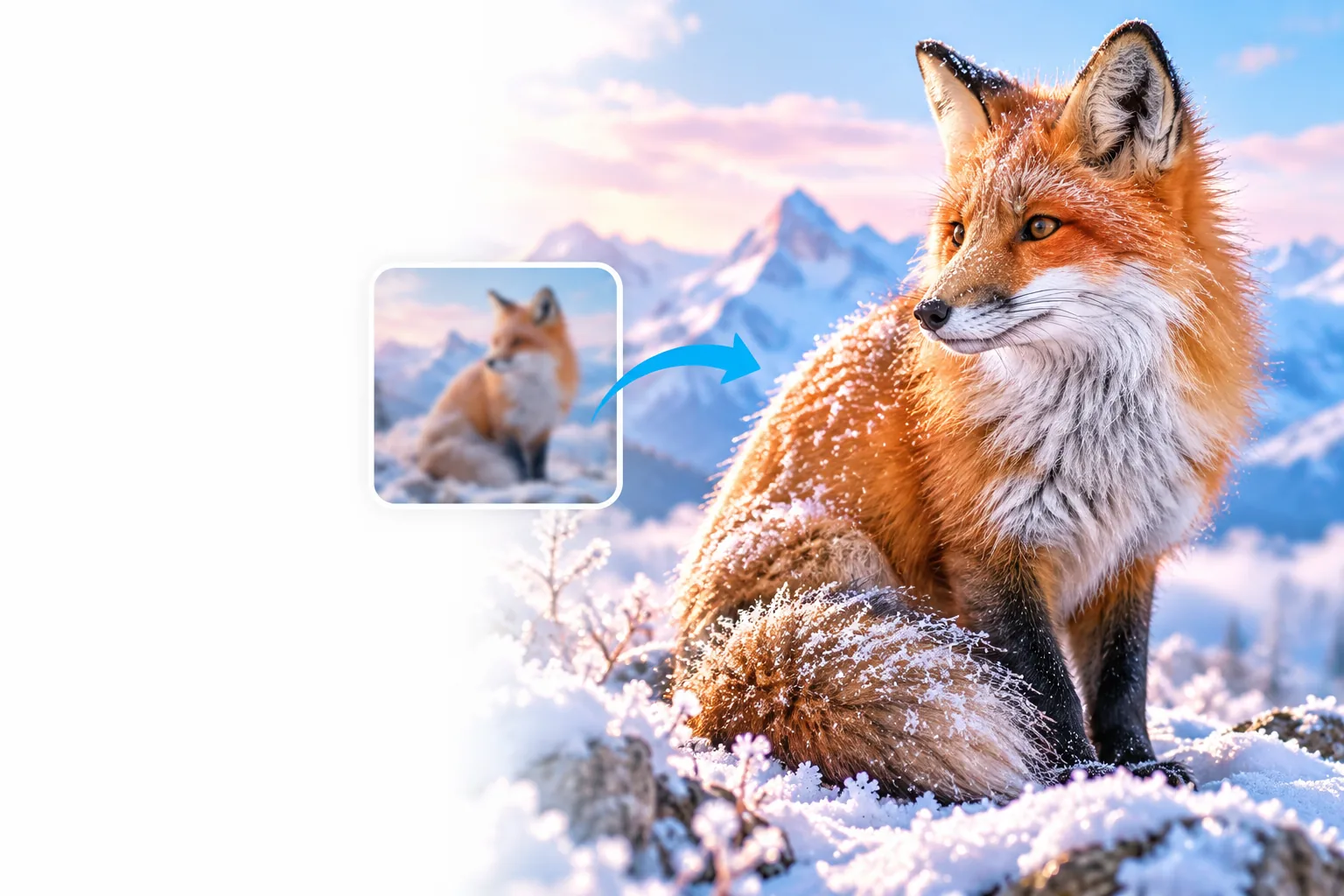
A small picture may look fine on a phone screen but expose its flaws when cropped, printed, or viewed on a larger display.
An image upscaler can add plausible texture, but it cannot verify tiny lettering, distant faces, or objects that were never clear in the source.
WorkaroundFind the original camera file or take another photo when factual detail matters.
Messaging apps and social platforms often compress images. Enlarging a downloaded copy may emphasize blocks, halos, and smeared edges.
WorkaroundStart with the earliest, least-compressed version you can access.
Upscaling does not fix missed focus, severe motion blur, or a crop with too little subject information. Sharpening those flaws can make them more distracting.
WorkaroundCompare the enlarged result with the source at the size you will actually use.
Choose the path that matches the picture rather than applying the same enlargement to every file.
Open the original in your Android gallery and check whether the subject is in focus. Make a copy, crop only as much as needed, then try an image upscaler. Inspect hair, fabric, and background edges before keeping the result.
Ask for the original file before working from a messaging-app preview. If the compressed copy is all you have, enlarge it conservatively and watch for artificial lines around faces or text. Keep the untouched version for comparison.
Check thin strokes and small labels at 100% view after enlargement. If exact lettering or brand marks matter, rebuild those elements from an editable source instead of relying on an image upscaler to invent clean edges.
These related guides cover different goals; none replaces checking the actual output against your source.
The useful comparison is the workflow you need, not an unsupported claim that one method always produces sharper pictures.
Android gallery editor
Browser-based image upscaler
Android gallery editor
A photo already available in the phone's gallery
Browser-based image upscaler
An image you choose to submit through a web page
Android gallery editor
Crop, rotate, and make available photo adjustments
Browser-based image upscaler
Try enlargement or enhancement where the service offers it
Android gallery editor
Depends on the phone and installed gallery software
Browser-based image upscaler
Depends on the website, browser, and connection
Android gallery editor
Check whether edits save over the original or create a copy
Browser-based image upscaler
Review the service's upload and retention terms first
Android gallery editor
Resizing can leave small lettering soft
Browser-based image upscaler
Enhancement can make lettering look convincing but incorrect
Android gallery editor
Compare the edited file with the original at intended viewing size
Browser-based image upscaler
Compare both versions at full size and inspect invented detail
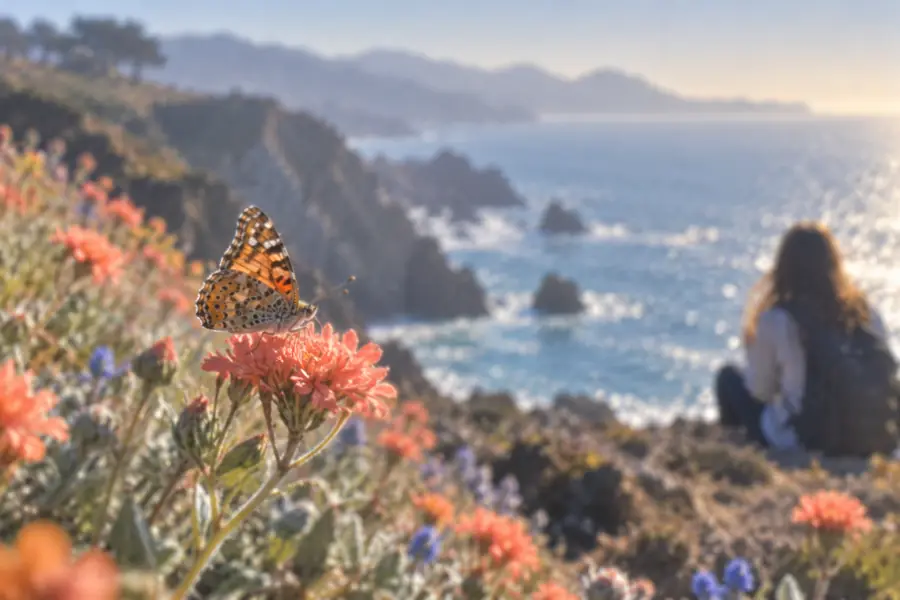
This illustrative butterfly pair shows the kind of before-and-after comparison to make. It is not a verified result from a particular Android app or the linked service.
Zoom into the wing markings and background. A pleasing result is useful for presentation, but apparent new patterns should not be treated as evidence of detail in the original.
The right outcome depends on where the picture came from, who appears in it, and whether accuracy matters more than appearance.
You have a small old photograph and want a more comfortable viewing copy.
Keep the scan untouched, label an enhanced copy clearly, and avoid treating newly visible facial details as historical facts.
image upscaler examples freeA volunteer sends a compressed event picture from an Android phone.
Ask permission before submitting identifiable faces to any service, request the original file, and review the provider's handling terms.
free image upscaler onlineYou need a product picture for a larger layout with an exact label.
Use the image upscaler for a visual draft, then verify packaging text against the source artwork and correct it separately.
image upscaler vs photoshopChoose a clear source, keep an untouched copy, and compare the result at its intended viewing size. Imageupscaler can point you toward image enhancement, but check the destination's current features and terms before submitting a private photo.
Explore image enhancementLook for a workflow that accepts your source image, gives you a result you can inspect closely, and has terms you are comfortable with. Test it on a representative photo rather than judging from promotional examples alone.
Your gallery may offer resizing or editing, but its options vary by phone and software version. If you use a browser-based image upscaler, first check whether it accepts a file selected from your device.
It may improve the appearance of some edges, but it cannot reliably recover detail lost to missed focus or motion. Compare the result with the original, especially around eyes, lettering, and fine patterns.
That depends on the service's current privacy policy, retention practices, and the sensitivity of the photo. Get permission from people pictured when appropriate, and avoid uploading confidential images unless you have reviewed those terms.