Manual resizing guide
Step by step: how to upscale an image without ai
If you are looking for how to upscale an image without ai, start with the best original file you have and use a conventional resizing method. This guide explains what to prepare, which settings to try, and how to judge the result without mistaking added pixels for recovered detail.
Prerequisites
Prepare your source image and choose a target size before opening a resize dialog. The numbered workflow below uses ordinary image-editing controls, not generative reconstruction.
-
1
Choose the best source
Find the highest-resolution original available, rather than an image saved from a chat preview or screenshot. Check its pixel dimensions and inspect it at 100% zoom for blur, compression blocks, and noise. An image upscaler can make a file larger, but conventional interpolation cannot retrieve detail already missing from the source. Make a copy before editing so you can compare the finished image with the untouched original.
-
2
Set the output dimensions
Open the image in an editor with a resize or image-size command. Enter the width or height required by your layout, and keep the aspect-ratio lock on unless you deliberately need to crop. Set size in pixels for screen use; changing the resolution metadata alone does not add pixels. If the requested dimensions are much larger than the source, expect a softer result and consider whether a smaller display size would work.
-
3
Select an interpolation method
For photographs, begin with bicubic or Lanczos resampling if your editor offers it. For hard-edged pixel art, try nearest-neighbor instead: it preserves square pixels rather than blending them. Resize once from the original rather than repeatedly enlarging an already enlarged copy. An image upscaler setting with an unfamiliar name may use another process, so check the editor's documentation if avoiding AI is important.
-
4
Inspect, sharpen, and export
View the resized image at its intended display size and at 100% zoom. Apply a small amount of conventional sharpening only if edges look soft; stop when halos appear around high-contrast lines. Compare the result with your untouched copy, then export in a format suited to the image and its destination. Keep an editable copy so you can revise the dimensions or sharpening without starting from a compressed export.
Numbered steps
The workflow above is the non-AI route. These related pages cover different decisions if you need a particular output size or want to compare approaches.
Common errors and fixes
Two conventional methods can behave very differently. Pick the method for the image type, then diagnose the result at the size where it will actually be seen.
Bicubic interpolation
Nearest-neighbor interpolation
Best starting point
Bicubic interpolation
Photographs and illustrations with smooth gradients.
Nearest-neighbor interpolation
Pixel art and deliberately blocky graphics.
How new pixels appear
Bicubic interpolation
Blends values from nearby pixels to create smoother transitions.
Nearest-neighbor interpolation
Copies the value of a nearby pixel without blending.
Typical error
Bicubic interpolation
A small source may look soft after a large enlargement.
Nearest-neighbor interpolation
Photographs can look visibly jagged or blocky.
Fix for soft edges
Bicubic interpolation
Try modest sharpening after resizing, and check for halos.
Nearest-neighbor interpolation
Switch to a blending method if crisp blocks are not the goal.
Fix for jagged diagonals
Bicubic interpolation
Inspect at the intended display size before changing settings.
Nearest-neighbor interpolation
Use bicubic interpolation for artwork that needs smooth diagonals.
Fine detail
Bicubic interpolation
May smooth existing detail; does not reconstruct missing texture.
Nearest-neighbor interpolation
Keeps individual source pixels distinct; does not create detail.
When neither works
Bicubic interpolation
Use a better source or reduce the requested display size.
Nearest-neighbor interpolation
Use a better source or reduce the requested display size.
Advanced tips
A careful manual resize is predictable, but it has hard limits. Treat these checks as part of the workflow rather than defects to hide with stronger sharpening.
-
Missing detail stays missing
Conventional resampling estimates pixel values between those already present. It cannot recover a face, lettering, or fine texture that is absent from a tiny original.
WorkaroundLocate the original capture or use the image at a smaller displayed size.
-
Compression artifacts grow too
Enlarging a heavily compressed JPEG makes its blocks and ringing easier to see. Sharpening can emphasize those artifacts rather than remove them.
WorkaroundStart from a less compressed source if one exists, and compare exports at the final size.
-
Sharpening has a threshold
Extra sharpening can make an image appear crisper at first, then produce bright outlines and gritty noise. An image upscaler cannot turn those outlines into genuine detail.
WorkaroundAdjust sharpening while viewing at 100% zoom, then check the intended display size.
-
Print quality depends on size
Changing a file's resolution label does not increase its pixel count. A large print from a small image may remain visibly soft even after resizing.
WorkaroundCalculate the required pixel dimensions for the planned print and choose a stronger source when possible.
- Softer appearance
- Sharper appearance
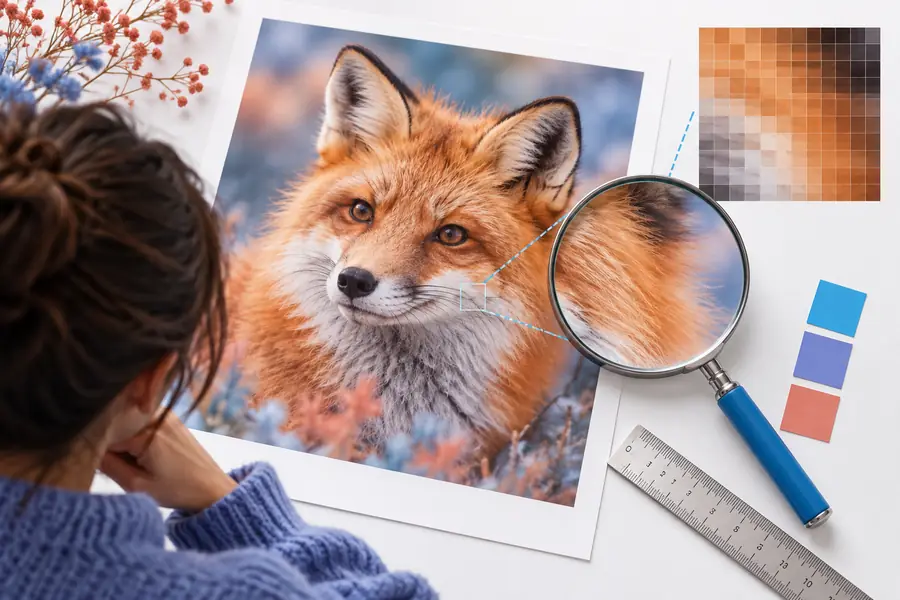
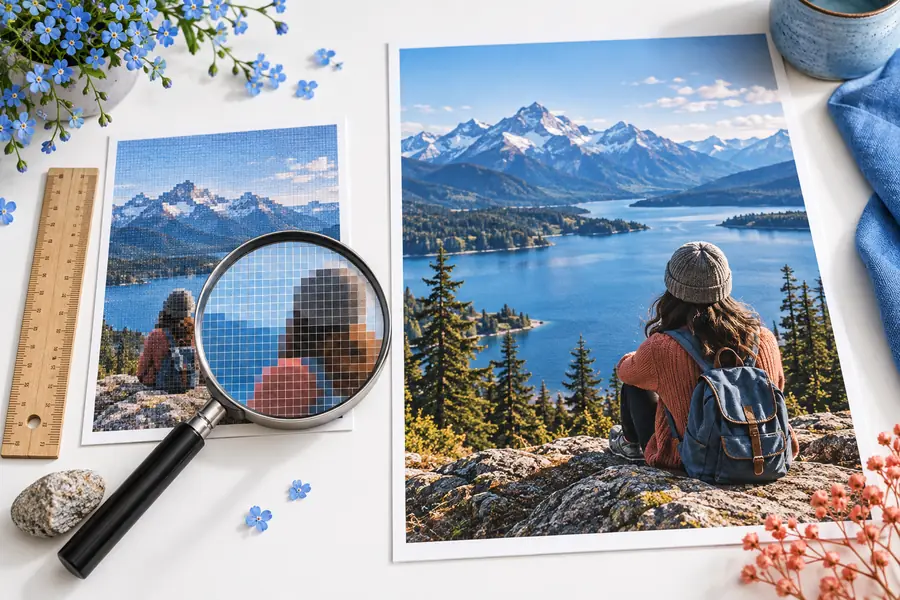
This pair illustrates a visible difference in edge sharpness, not a verified demonstration of non-AI resizing. For a fair manual test, export two versions of your own source at identical pixel dimensions and compare them side by side.
Decide whether manual resizing is enough
Use the steps above when you want predictable enlargement without AI. If the result remains too soft for your destination, Imageupscaler can point you toward another image workflow; check the destination's available options before relying on it for a specific method or output.
Explore image options- Keep your original file for comparison
- Judge quality at the intended display size
- Do not assume a larger file contains more real detail
Tutorial FAQ
Yes. Use an editor's image-size command with a conventional resampling method such as bicubic or Lanczos. The file gains pixels, but the method cannot restore detail the original photo never captured.
Begin with the largest, cleanest original and enlarge only as much as the destination needs. Compare interpolation settings at the intended display size; no conventional image upscaler can guarantee unchanged quality when a small source is enlarged substantially.
Changing DPI or PPI metadata by itself does not add pixels. If the pixel dimensions stay the same, the file has not gained image detail; the metadata only affects how its size may be interpreted for print.
Try nearest-neighbor interpolation when you want the original square-pixel appearance. If the artwork contains smooth shading or diagonal lines that should not look blocky, compare it with a blended method before exporting.
Interpolation fills the larger pixel grid using information from the smaller original, so large increases can look soft. Check whether the source was already blurred or compressed, then try a cleaner original, a smaller output, or restrained sharpening.