Online sellers
A product photo looks soft after being copied from a marketplace listing or compressed export.
A cleaner, larger image can make packaging edges and product contours easier to evaluate before publishing.
image upscaler 4kImage enhancement
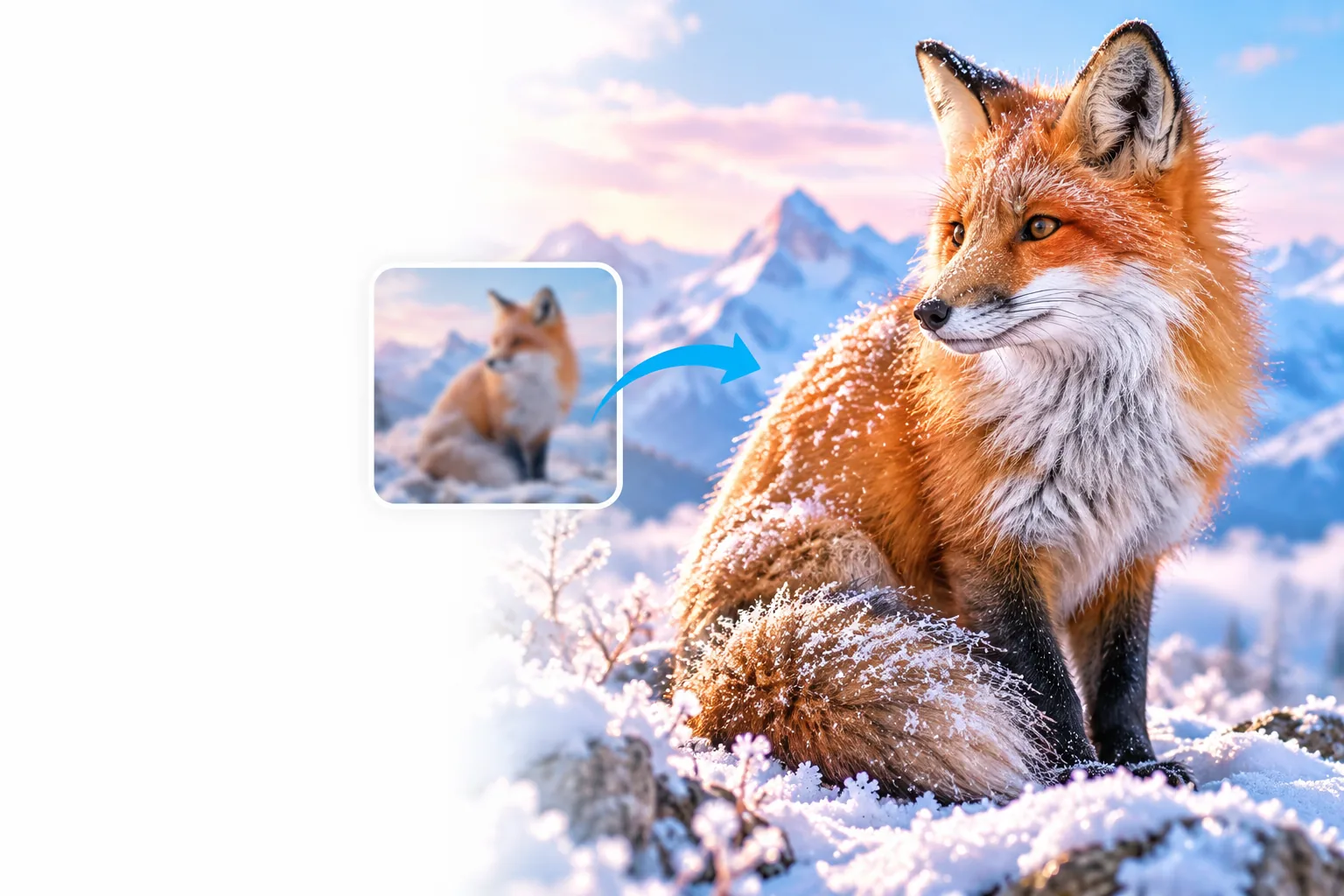
An ai image upscaler helps recover visible detail when an original photo is too small, soft, or compressed. Upload an image and let the enhancement route prepare a larger, cleaner version.
Know the route
The AI route is designed for intelligent enlargement, not every kind of image editing. These boundaries help you choose the right starting point.
A heavily blurred or tiny source may become cleaner without revealing accurate hidden texture.
WorkaroundUse the highest-resolution original available and compare the result at 100% zoom.
Upscaling improves size and perceived clarity, but it is not a complete tool for layers, masking, retouching, or color grading.
WorkaroundFinish creative edits in your preferred editor after enlargement.
Small labels, screenshots, and fine lettering may remain uncertain when the source pixels are severely damaged.
WorkaroundKeep the original design file or replace unreadable text manually.
A larger file can still look unnatural if the requested dimensions exceed what the source can support.
WorkaroundChoose a practical target size and inspect edges, faces, and repeated patterns before publishing.
Simple workflow
The route focuses on three connected jobs: reading the source, enlarging its structure, and presenting a result you can inspect before using.
The system examines edges, textures, faces, and color transitions to identify which details should remain stable during enlargement.
It increases the image dimensions while refining contours and surface detail instead of simply stretching every pixel.
Review the output for natural texture, readable features, and unwanted artifacts before saving or placing it in a project.
Related paths
Choose a more specific route when your goal depends on output size, scale, or the kind of example you want to inspect.
Visual check
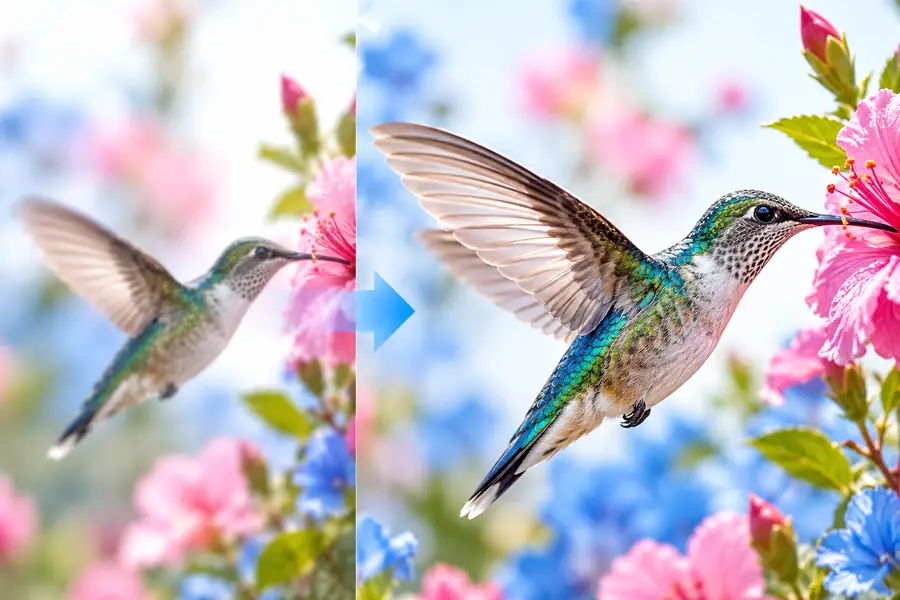
Before-and-after viewing makes it easier to judge whether enlargement improved the image without introducing distracting artifacts.
Compare edges, texture, and fine features at the same zoom.

Practical uses
Different images need different kinds of judgment. Start with the use case closest to your project, then inspect the output rather than assuming every source will respond the same way.
A product photo looks soft after being copied from a marketplace listing or compressed export.
A cleaner, larger image can make packaging edges and product contours easier to evaluate before publishing.
image upscaler 4kAn older photo is useful but too small for a print mockup, presentation, or larger crop.
Intelligent enlargement can improve viewing size while keeping the original available for comparison.
image upscaler examples freeA raster reference needs to be enlarged before it is placed into a layout or concept board.
The enlarged version gives the composition more usable working room, with manual cleanup still available afterward.
image upscaler 16x freeA phone image is good enough to use but loses impact when displayed on a larger screen.
A larger, clearer export can make the image more presentable for social posts, slides, or visual drafts.
image upscaler 4kNext step
Bring a small or soft image into the enhancement workflow, review the enlarged result, and decide whether it fits your intended use. The best outcome starts with the strongest original you can provide.
Upscale an imageCommon questions
It enlarges a lower-resolution image while analyzing edges, textures, and other visual patterns. The goal is to produce a larger result that looks clearer than a basic pixel stretch.
No. Basic resizing changes the dimensions using interpolation, while an AI-based route attempts to infer and refine visual detail during enlargement. The result still depends on the quality and condition of the original.
It may improve perceived clarity and make edges easier to see, but it cannot reliably recover accurate information that was completely lost. Severe blur, compression, or motion can remain visible in the enlarged result.
Images with recognizable subjects, reasonably clean edges, and some existing detail usually provide the most useful starting point. Very tiny, heavily compressed, or severely damaged files need closer inspection after processing.
Use the cleanest original you have before enlargement, then perform detailed retouching or layout work afterward. Keeping both versions lets you compare changes and avoid treating generated detail as guaranteed source information.