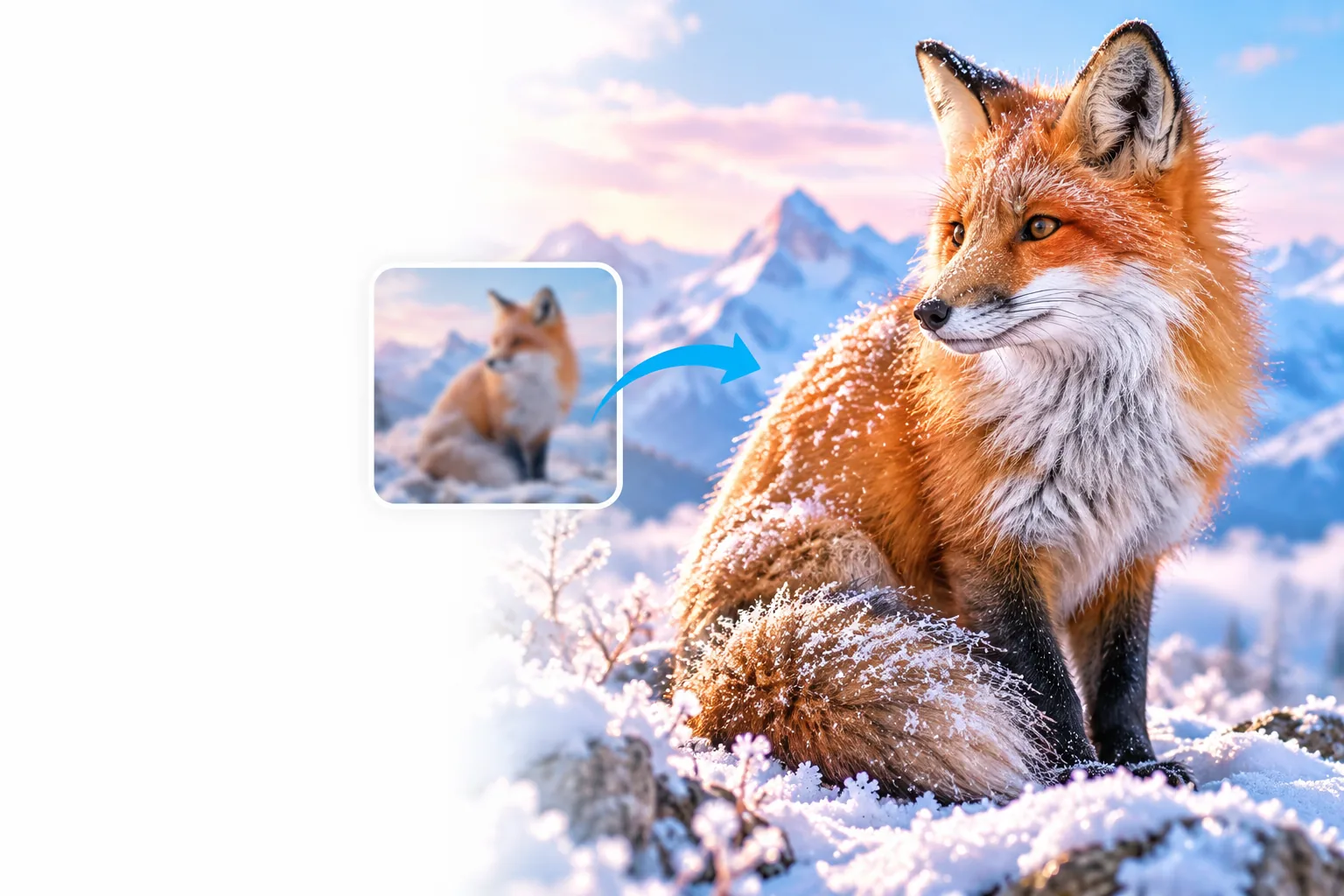
Higher resolution

Use an image upscaler 4k workflow for sharper detail

An image upscaler 4k workflow helps turn a small, soft source into a larger image with cleaner edges and more usable detail. Start with the image you want to improve, then review the result before publishing or printing.

Review the result before use
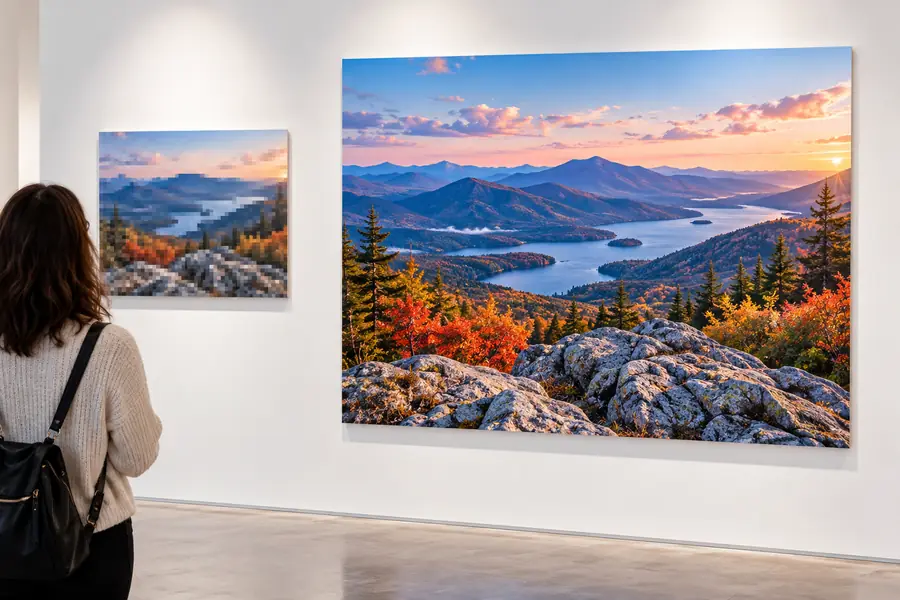
Large image detail comparison for 4K upscaling

Know the edges of 4K enlargement

A larger output is not the same as a newly captured high-resolution original. These limits help you set the right expectations before you upscale.

  • It cannot recover every lost detail

    If a source is heavily blurred, compressed, or out of focus, enlargement cannot reliably recreate information that was never captured.

    WorkaroundUse the cleanest original available and compare the result at 100% zoom before sharing it.

  • It does not fix severe exposure problems

    Upscaling can preserve and clarify existing tones, but clipped highlights, crushed shadows, and extreme color casts may remain.

    WorkaroundCorrect exposure and color first, then run the image through the upscaling workflow.

  • It cannot guarantee print perfection

    A 4K-sized file may still be unsuitable for a large print if the subject has fine text, intricate patterns, or visible source artifacts.

    WorkaroundCheck the intended print dimensions and inspect small details at the final viewing size.

  • It may change uncertain textures

    When the source contains noise, fur, foliage, or tiny lettering, processing may smooth, sharpen, or reinterpret those areas.

    WorkaroundKeep the original, test a crop with the most important detail, and choose the version that looks natural.

How the upscale workflow works

The process is simple, but each step matters because the source image and the final use determine how much enlargement is sensible.

  1. 1

    Choose the strongest source

    Select the largest, least compressed version of the image you have. Avoid repeatedly saving a low-quality copy before beginning.

  2. 2

    Set the intended size

    Think about where the image will appear, such as a 4K display, product page, presentation, or print, and use that goal to judge the output.

  3. 3

    Inspect and export

    Review faces, text, edges, and repeated textures at full size. Keep the version that adds useful clarity without making artifacts distracting.

Choose another route when your goal is broader than enlarging one image for a 4K-sized result.

See the 4K difference

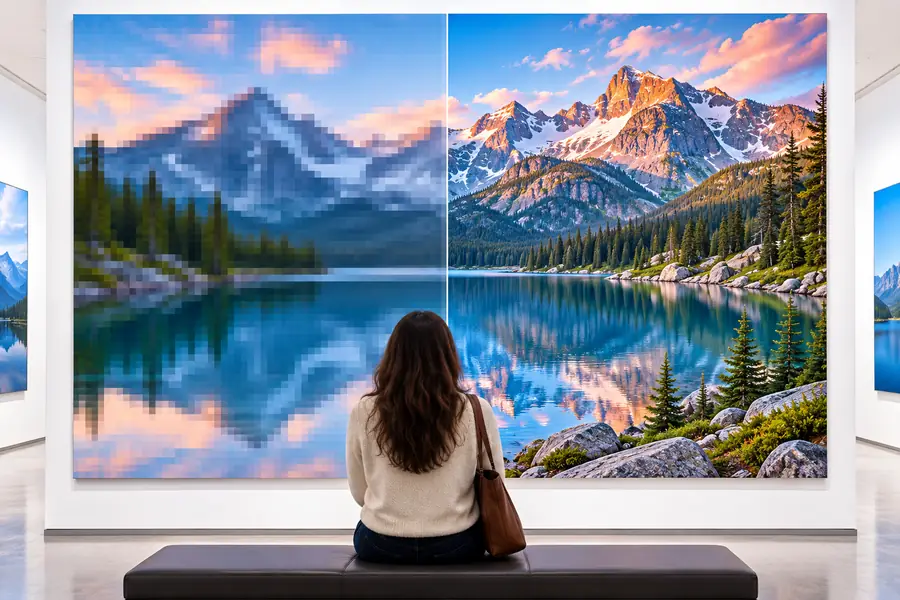
The useful test is not simply whether the file is larger. Compare the source and enlarged versions where detail matters most, especially along edges and in textured areas.

  • Original source
  • 4K-sized result

Inspect fine details at full size, then judge the image at its intended viewing distance.

Small source image before 4K enlargement
Enlarged image with clearer detail after upscaling

Where 4K upscaling helps

A larger image can be useful in different settings, but the best result comes from matching the enlargement to the way people will see it.

Photographers

A favorite crop is strong enough to keep, but the original file is too small for a wide desktop display or a moderate print.

Use an image upscaler 4k workflow to create a larger working version while retaining the original for comparison.

ai image upscaler

Online sellers

A product photo needs more room on a listing page, catalog layout, or promotional banner without looking visibly soft.

Enlarge the cleanest product source, then check lettering, seams, and small edges before publishing.

image upscaler examples free

Designers

A small visual asset must fit a presentation, landing page, or screen mockup with more breathing room around the subject.

Create a larger asset for layout work and keep the source nearby so you can avoid over-trusting generated detail.

image upscaler 16x free

Family archivists

A scanned photograph is meaningful but limited in size, and a larger copy would be easier to display or share.

Upscale gently, inspect faces and background texture, and preserve the untouched scan as the archival master.

ai image upscaler

Prepare your image for a larger view

When a small source is holding back a screen design, crop, product layout, or personal photo, an image upscaler can give you a more workable starting point. Begin with the cleanest file, choose a realistic 4K-sized goal, and review the important details before you rely on the result.

Upscale my image
  • Start with the best source available
  • Check faces, text, and fine edges
  • Keep the original for comparison

Questions about image upscaler 4K results

These answers cover the practical questions people commonly ask when enlarging an image toward a 4K-sized output.

It generally means enlarging a smaller image so its output is suitable for a 4K-sized display or project. The phrase describes the intended resolution or viewing context, not a guarantee that every source will gain authentic new detail.

No. An image upscaler can increase pixel dimensions and improve the appearance of edges or textures, but it cannot fully restore detail lost through blur, severe compression, or poor focus. Always judge the result at its final use size.

Clean, well-exposed images with reasonable focus and limited compression usually provide the strongest starting point. Product photos, portraits, landscapes, and illustrations are easier to evaluate when the subject has clear edges and visible structure.

It may make existing text appear larger and more defined, but tiny or blurry lettering can remain unreliable after enlargement. Check every important word at full size and replace the source with a higher-quality version when accuracy matters.

Yes. Keep the original as a reference and archival copy, especially when the enlarged version changes uncertain details. Comparing both files helps you decide whether the result is suitable for the screen, layout, or print you have in mind.

Start creating
Start creating